Desertcart purchases this item on your behalf and handles shipping, customs, and support to Philippines.
✍️ Elevate your creativity—because your ideas deserve precision and speed.
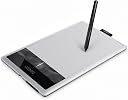
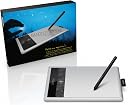
The Wacom Bamboo Capture Pen Tablet (CTH470) is a compact, USB-powered graphics tablet designed for digital photo enthusiasts and casual creatives. Featuring 1024 levels of pen pressure sensitivity, 4 ExpressKeys for customizable shortcuts, and multi-touch gesture support, it offers precise control and efficient workflow. The package includes full versions of Photoshop Elements, Autodesk SketchBook Express, and Nik Color Filters, making it an ideal starter kit for photo editing, drawing, and design on Mac or Windows systems.
| ASIN | B005HGBEZ2 |
| Active Surface Area | 5.8x3.6 |
| Additional Features | Pen |
| Best Sellers Rank | #207 in Computer Graphics Tablets |
| Brand | Wacom |
| Built-In Media | Bamboo Capture Pen and Tablet, Full software bundle - Adobe Photoshop Elements, Autodesk SketchBook Express and Nik Color Efex Pro 3. |
| Color | Silver |
| Compatible Devices | Personal Computer |
| Connectivity Technology | USB |
| Customer Reviews | 4.3 out of 5 stars 1,096 Reviews |
| Display Type | LCD |
| Global Trade Identification Number | 00753218992772 |
| Item Dimensions L x W | 6.9"L x 10.9"W |
| Item Weight | 14.88 ounces |
| Manufacturer | Wacom, Inc |
| Mfr Part Number | CTH470 |
| Model Name | CTH470 |
| Model Number | CTH470 |
| Native Resolution | 2540 lpi |
| Operating System | Mac OS, Windows |
| Pressure Sensitivity | 1024 Levels |
| Special Feature | Pen |
| Specific Uses For Product | personal |
| Target Audience | Teacher |
| UPC | 753218992765 753218992697 753218992772 887592566929 |
H**H
Outstanding tablet for non-professionals
I bought this tablet for my Graphics Design class in college. We have some Wacom Intuos 4 in the graphics lab, I really enjoyed using it for Illustrator and InDesign assignments, so I wanted one for my own use. This is definitely not an Intuos, but it is really good. Since I only have used Intuos for about three weeks before buying the Capture, there aren't any feature that I miss (except the smaller size, but more on that later). Some reviewers mentioned lack of eraser as a big deal, maybe because I never used it on Intuos, I don't miss it at all. Erasers are only a shortcut key away anyways. Maybe for a full time designer that spend 10+ hours with their tablets, an eraser a big deal, but for casual users it's totally fine. Tablet size is enough for casual/non-professional use. Be aware that not all of the gray surface in the pictures is usable, about 75% of the total area. It is clearly marked by lines on the edges of the working rectangle. Speaking about the size of tablet, the screen size should also be taken into consideration. I use the Capture on my 16" laptop, and I feel that's a good combination. We have 27" iMacs in the graphics lab, so using Intuos 4 would make more sense on those huge screens. I'm sure even with smaller screens, bigger tablets = more precision = better results, but once again, for beginners, Capture's area is big enough. This tablet allows me to make some decent drawings on Illustrator. Using a tablet doesn't enhance your drawing skills, but it is definitely much better than drawing with a mouse. There's a learning curve to it, but it's not impossibly difficult. I read a lot of Wacom users complain about the nib wear on the latest generation of Wacom tablets. I haven't used it long enough to comment on nib wear, but it doesn't seem to be used at all after two weeks of use. Perhaps I just don't use it as much as those hard-core design enthusiasts. I like having the 'paper-like feel' drawing surface, but personally I don't like that feel when I'm using it for InDesign layout purposes. I'd rather have more 'glide' on the surface. So I bought a clear plastic folder, cut a tablet-sized piece and taped it over my Capture. It glides around easier (and perhaps saves the nib from wearing out too quickly). The folder only cost me 50 cents. Also, if I need to have that paper-like feel for precision drawing, I'll just remove the plastic cover and re-tape it afterwards. If you want to do so, use a low-tack tape to prevent tape residue build up on the tablet surface. For me, the biggest advantage of using a tablet is less fatigue on your wrists. When you're clicking and dragging a lot, such as when you're doing page layout in InDesign, using a tablet will be much easier on your wrists, and also much more precise. The multi-touch feature is a nice addition to the tablet; sometimes I use it for browsing. I still need to practice the multi-touch gestures, such as flick and scroll up/down, but so far I found the scroll and zoom feature really helpful when I browse. I didn't buy the tablet to use it as a full time track pad, but for me it is an useful extra feature. Overall, I'd highly recommend this tablet if you're a beginner / early enthusiast of digital graphics design. Or if you're looking for a giant trackpad. If you are a serious enthusiast, perhaps you'd like to consider Bamboo Create (a bigger version of Capture) or Intuos.
C**G
Great tablet for drawing and taking Notes
If your thinking about using a tablet for school, go for it! I was on the bridge, I didn't want to buy an essentially expensive toy that I wouldn't use for school. The tablet writes extremely well and responsive. The touchpad is sluggish compared to my Macbook pro's touchpad, but it still works for scrolling through documents. Another reviewer said it feels like writing on thick construction paper with a think lead pencil, that hits it spot on. Overall, the tablet works too well for me to knock of a star for the sluggish touch pad. Couple tips: - Screenshot plus photoshop helps you start writing on whatever you see on your screen almost instantly, doesn't seem like a lot but I was wasting a lot of time in the beginning trying to figure this out. I've got a MAC so I press CMD+4 and highlight the area I want. Cmd+Tab over to Photoshop, CMD+O to open that screenshot(if you get your settings, it'll be the first on at the top.) I was screenshotting a lot of examples from various homework, and this was insanely useful. - Skim for Mac is a great app that lets you write on PDFs.(it took me a looong time to finally find this and its free) Still looking for a smooth pdf editor that would essentially let me draw on PDFs like photoshop or some iPad apps. It's pretty frustrating that I can only write in red pencil at a specific thickness thats unchangeable. Its mind boggling for me that NUMEROUS iPad and android applications have full fledge apps that can fully edit PDFs like I'm saying, but I can't find a single program that will do this. Even Adobe Acrobat only lets you write in that same red pencil. If you know of such an program from MAC OSX, please comment, I've spend hours trying to look for a good one.
D**A
Good for the casual
I know how hard it is to look for tablets. This is my first one, and currently the only one I've ever used. I am only a casual artist. I do not need anything extremely fancy. This tablet is good and cheap. It's by no means the best, but it is good enough to be around a hundred dollars. The buttons on the side, I barely use. The pen has a couple buttons on the side, I turned one off because it's awkward to press and the other one became a right click. The pen is just fine, it's slightly weighted and feels natural to work with. The drawing surface is not bad at all. Plus it comes with some basic art programs that I like to work with. You are rather limited with these programs, as they are the free version, but it's not a big deal to download a better free program, or buy the full version or something else like Adobe Photoshop. There is one main problem that I have, and I'm still not sure if it's just my computer or if it's the software. I will have to restart my computer or reinstall the software from time to time or else it won't work right. This is really annoying to do. Sometimes the reinstallation doesn't even work. And I don't think these were built to last very long. My first one lasted jsut about two years, which is a decent amount of time, before it failed to connect to my computer at all. All in all, for the casual artist who by no means expects to be a professional artist, this is a great tablet. (for beginning tablet users, it is also good). There's the software problem, yes, but maybe your experience will be different. Hope this helped.
D**S
Love this little/big creative tool
Had originally purchased the Wacom Bamboo Splash but returned it and purchased the Capture because it works with the wireless attachment Wacom Wireless Accessory Kit which makes working with this tablet a dream; it has a rechargeable battery so you charge it at night when you sleep and you are ready to use it in the morning. It comes packaged with Corel Painter Essentials, Autodesk Sketchbook Express, Adobe Photoshop Elements, Nik Color Efex Pro 3.0 WE3, as well as some special offer freebies such as a free Shutterfly photo book. It features training videos for Photoshop Elements and Corel Painter Essentials. But I use it with Photoshop 5.5 and I purchased Autodesk Sketchbook Pro and the utilization is amazing. I am an eBook graphic artist so there is a lot of drawing, artist renderings, photo editing to be completed and this tablet shines through. It is small enough (5.8 inch x 3.6 inch) for my desk where it is not too overwhelming but does big things. One day I'll upgrade but right now this product is wonderful. It has preference settings for you to choose how you would like it to react - as either a pen or a mouse, you can choose whether you are a right or a left handed artist, touch options, touch functions, etc. If you can afford it this tablet matched with the wireless attachment could really get you up and running without the hassle of a USB wire connection. I also purchased the Wacom Bamboo Carrying Case and all the items together give it such a professional look. I have had no intermittent cursor skipping or any lags. The stylus glides in Photoshop smoothly and lets me define my work. If I am going to a clients office I will take the tablet and just jot ideas down as they speak. It is really a cool creative tool. Hope this short review helped and many best wishes if you decide to make the purchase.
A**N
Great tablet, especially for starters or college students on a budget
This is my first purchase ever for a drawing tablet so it took quite some getting used to, but it is indeed very convenient and efficient! I was debating whether to get the Capture or the Create at first, mostly regarding the size and the built in the eraser which seems to be the only difference between the two in terms of functionality. I finally settled on the Capture and wasn't disappointed. Even though the Create is bigger, you would assume it'd be more efficient, but the workable area of the tablet translates to your whole computer screen, so I'd say you're not missing much getting the Capture with a smaller work area. With the built in eraser, I have always been used to just Ctrl+Z to undo anything I didn't like, or use the eraser tool in the program I'm using, so it didn't seem to be as important. In terms of performance, the tablet integrates smoothly with whatever you're doing on your computer. It can act as a mouse or drawing pad; pan, zoom, etc. everything works perfectly. Rarely if ever do I experience a glitch, though sometimes it can be a bit too sensitive. The only real annoyance is that the pen nib grinds down as you use it, so every so often you'd have to purchase some nib replacement. If you're a college student on a budget like I am, getting the Capture provides the best bang for your buck! My apologies to the professional artists if my review sounds too amateur :p Good luck in your endeavours!
C**2
Yes to Graphics, Maybe to Sketchup, No to AutoCAD
Yes to Graphics, Maybe to Sketchup, No to Autocad. I decided that I needed to purchase a graphics tablet during the last week of December while I was working on my portfolio. The deadline for submission was the Jan 3 and I was creating diagrams and graphics for my submission. The realization occurred after I spent 5 hours trying to diagram a site plan with a mouse when the same graphic could have been accomplished under an hour using a graphics tablet. Thus, I began my search for a graphics tablet. The first brand I went to was Wacom. I recently saw some of these fancy LCD and I noticed that they just released a new line of tablets so I decided to take the plunge. I initially decided to purchase the larger version (Wacom Bamboo Create) with the bigger equals better mentality; however, I was quick to realize that it was way too big. For a size comparison, it was approximately the same size as my 13 inch Macbook Pro, maybe even wider. I sent it back to Amazon and got the smaller version. I've been using the tablet for a few days and the Wacom Capture is great. I am running a late-2009 13 inch Macbook Pro with 8 gigs of ram. The OS I am using is Windows 7 via Bootcamp. The size of the tablet is approximately the size of a sheet of 8.5x11 inch paper with a drawing area of something like a small Moleskin book. The finish and feel is kind of luxurious and it really took me by surprise. When I unboxed it, I was in awe of how nice it felt from a piece of hardware. Very impressive. The first thing I did after unboxing it was go to the Wacom website and download the latest software and drivers for the Create. I didn't even bother opening up the included CDs since I never use the free software with any of the things I buy. I installed both of the available downloads from the site and then proceeded to restart the computer. Everything went smoothly and then I plugged in the tablet. It registered and off I went. I adjusted some of the settings in the Windows' Control Panel and including settings that another reviewer mentioned regarding the response. I restarted again so everything is registered and working fine. The first 15 to 20 minutes of using it, I was completely thrown off. I was just shifting the pen over the tablet and it kept selecting things. If the pen is touching the tablet, it selects things. If it is hovering over the active area on the tablet, it moves the pointer. Tapping on the pen would signify a click and holding it down for a while will active the `right-click' menu. The initial setup of the tablet is aligned to the screen of the computer. Click the top corner of the active tablet area will cause the point on the screen to jump to the respective location on the screen. This was immensely annoying because I was not accustomed to it. I recommend switching the tablet to "Mouse" mode instead of "Pen" for the initial use to get acquainted to the new tablet. The option can be found at the "Bamboo Preferences" via "Pop Up Menu." After getting a taste of the tablet, I opened up Photoshop and started making lines and marks on a blank piece of paper. It's pretty responsive and it worked really well. I then proceeded to test it on Illustrator. It was fantastic. I was able to create diagrams and draw things very accurately. Both CS4 Photoshop and Illustrator worked flawlessly with no noticeable lag. I then opened up a blank Word document and started drawing on it. There was a good chunk of lag probably because it was not meant to handle drawing data efficiently. For graphics, this tablet is effective and works efficiently. Being a student and intern architect, I spend a ton of my time using AutoCAD, Sketchup and Revit when I am not creating or editing graphics. I started off by testing out AutoCAD with it, and then Revit. I find the tablet struggling with it. I didn't seem to find any additional lag while I was using the tablet in both of these performance intensive software; however, I did end up spending way too more time doing the simplest things on the tablet. The biggest issue/nightmare in CAD drafting or building a model is not having the 3rd mouse button with a scroll wheel. Zooming in and out of areas and objects takes forever. It's like drafting with a touchpad for those who have tried it - It's not fun at all. In the end, I spent more time zooming in and out of the drawings/model than I did creating content. I haven't figured out a good way to navigate in these two programs, but with practice I can see how this is tolerated if the tablet was to be used. For Sketchup, I think this tablet works significantly better than compared to AutoCAD and Revit. The reason for this is due how Sketchup operates. I've set one of my keys on the Wacom pen as the "Middle" button, allowing me to pan across the screen relatively easily. Despite this, however, the tablet still suffers the limitations of zooming in and out. All these programs work, but not that well compared to a 3-Button mouse with a scroll wheel. Also, use "Mouse" model for these software will make your life significantly easier. Summary: If you're working in the building design profession and produce a lot of graphics work, you should get this tablet. It will save a ton of time. If you only do technical drawings and don't do graphics often, stick with the 3 button scrolling mouse be completed faster. Notes: - As the other reviewers mentioned, the cord for the tablet is short. It's about 5 feet long I think. If this is a problem, you can always buy a longer cable or reuse an old one. It uses a micro USB cable and a longer cable is pretty cheap. - I am right handed and 95% of my typing is done with my left hand. I feel very awkward and out of place when I the tablet is next to the right side of my mac. It creates a gap between my laptop keyboard, the cables from the tablet, and tablet that is fairly wide. Since I need access to my keyboard 90% of the time, I decided to make this gap between the tablet and my keyboard as small as possible. I decided that the most ergonomic and efficient position is to flip the orientation of the tablet. In other words, change the settings to "Left Handed". This way, the gap between keyboard and tablet is very minimal. - There is no eraser on the opposite end of the pen and there is no need for it. I find it easier to just set a button as "Eraser" and clicking on the button when the need arises. It's much faster than flipping the pen around to erase. - Some people use this as a touchpad. I'm on a laptop so I will never use the tablet as a touchpad. I keep the option of using it as a touchpad off at all times. This allows me to lay my hand on the tablet while I'm drawing.
Y**6
An Amazing Tool! ...When The Micro USB Cable Works
I never owned a tablet before, but decided to give one a try given that I knew for a while how much more precision and speed they have over a normal laser/ball mouse. I had no idea just how much of a difference it makes until I used it. No doubt it'll take a bit of getting used to if you never used a tablet before, but it is worth the slight learning curve getting the feel of it down. The tablet can tell where your pointer is just by hovering the included pen over the active area. The active area is the space where the little corner marks are on the tablet. It is not the entire surface as I expected, but that doesn't matter as it feels just fine. It is also a left and right handed tablet as you can flip it either way and configure your hand preference using the tablet's settings. There is also a fabric pen loop on the side where you can slide the pen into when not in use. The pen itself is wireless and uses no batteries (It gets power from the tablet wirelessly) has two buttons which can be programmed for just about anything. I have mine set to a right-click (Left-clicks can be done just by touching the tablet with the pen) and to scroll documents by clicking on them and dragging them up or down. The pen is pressure-sensitive as well, so it can be used for a variety of drawing/ image editing programs that support it such as Photoshop Elements 8 and Sketchbook Express 2011, which both come with the tablet. Drawing on the tablet feels like a marker on paper (to me) as opposed to the advertized pen-on-paper feel. That's no problem though as it still feels amazing with it's very light texture. It's not rough and it's very precise, so it's very easy to control your "brushstrokes" with the utmost precision. The entire surface (Not just the active area) is touch-sensitive as you can use your finger to control the pointer like a trackpad. You can toggle this mode by pressing the top button on the tablet. This is a handy function to have as if you are drawing, it's nice to be able to rest your hand on the tablet, so turning off the touch at will makes it much easier to use so it doesn't confuse touch and pen inputs. It has a variety of intuitive Apple-like finger gestures you can use that the included software fully explains such as swiping 3 fingers left to move a page back on web browsers and "pinching" to zoom in or zoom out on pictures or websites. The surface is very smooth and responsive... if you touch it lightly. Otherwise it feels very "squeaky" and "jittery", even with a clean hand, if that makes sense. Just use a light touch and you'll be fine. My only real gripe with it is that the USB cord that comes with it is only like 4 feet. Which is fine if your computer is nearby, otherwise it'll be stretched to it's limit and/or useless without a longer cord or a USB extension. You can however convert the tablet to be a wireless tablet by buying a separate accessory kit, but that is an extra $40. Update: Since getting this, I've had issues with the Micro-B USB cable so I've had to replace it. When that one went kaput as well, that prompted me to update this review from a perfect score down to 3 stars. See, when your cable goes, your tablet isn't operational. Making the cable type a pretty important part of a product's function. Even if you get the wireless kit for it you still need the cable to charge it so you can't circumvent the need for it. I did some research and it turns out that Micro-B USB is known to break so you unfortunately will have to keep replacing the cable for it. I probably should have researched cable types before buying it so I guess it's partly my fault for buying into it without checking every detail for potential issues, but yet not entirely because a manufacturer should always use the best connection types for a job so consumers don't run into issues. Since Micro-B USB is known to have issues, it means Wacom likely chose to use it in the design despite the risks of connection failure.
V**.
Great for Osu! - "Review for Osu! players"
I ordered this 5 days ago and it showed up at my doorstep today. I was excited to try it out. The pen has a great texture, not too slippery or grippy. The wire connecting to the PC is short but that's fine for my purposes. I was not able to install Bamboo Dock but the drivers, including the Wacom Preferences installed just fine, which was all I really needed. The button on the side of the pen is useful for helping you remember exactly how far up the barrel you held it when you finally get comfortable with it, and the hover distance is quite ample [You can remove the nib to artificially 'increase' that distance if you like.]. The pen also uses no battery and is quite light compared to, say, the huion 420 which is used by the official Osu! tablet. There was no input lag I could notice and it was very responsive, but remember to turn off raw input and mouse buttons in Osu! or it's going to not work/be annoying. I thought it would be a hard transition after playing with my mouse in my LEFT hand for 7 months and almost 10,000 plays, going to my RIGHT hand with a tablet, but it's caught on fast. Within 8 hours i went from having to no-fail to get C's on some of my favorite insanes to 95%+ A's competing with my old mouse scores. The harder thing is learning how to tap with the left now. An unimportant but perhaps worth mentioning detail is that the guts of this tablet are essentially the same as the tablet Cookiezi himself used in his hay-day. [the CTH-470s] I chose this over the CTL-470 because the reviews for it scared me with the claims of the wire connection dying very fast or not working outright. The connection on the CTH-470 feels like it will last essentially forever if you dont rough handle it.
M**G
Awesome. Purely Awesome.
This tablet is great. I found the drivers on Wacom's website and installed it from there. There are a lot of features and I could change what each button does (including the buttons on the pen itself). The downside is that the other tip of the pen cannot be used as an eraser, but for the price I got it for, I'm fine with that because I could change one of the buttons on the pen to activate an eraser mode. The weight sensors work pretty well, I get realistic strokes. In summation, it's a great product that every artist or animator needs to have on their desk.
D**N
Really loving it!
I bought this in order to draw sprites for a video game I'm developing and I couldn't be happier with it. It's very easy to use, especially in combination with the wireless adapter kit. I used to draw all the time but sort of lost interest in it over the years, but this tablet has really brought out my love for drawing again. The nibs wear out a little too fast for my liking, but that doesn't take away from the experience. The tablet is well made. Feels solid in your hands. I would recommend.
T**D
Does what it does. well.
Probably the pest tablet of this price bracket. bettery-free pen means I can draw all day long - unlike some of the cheaper ones - ewww. The drawing areas smaller then Im used to but works better for me. once i got used to it with less wrist movement i get less tires; better or worse for you on this will be 100% personal preference, but i say try it. Very durable, with a radio upgrade available (the kit includes a bluetooth and battery piece) which i probably going to get - and heres why (and why 4 stars) the included usb wire is like... 1 foot long (maybe 2 i dunno, i dont use it) and its 100% totally useless to anyone that doesnt have a USB port on thier screen or uses a desktop rather then a laptop. i mean guys... its small ok. if your buying this, also toss into your cart the upgrade kit or a longer usb wire (its micro usb, if your going to) it came with a free photo album from shutterfly which i got, and promptly ($6) for shipping the book was the $30 retail value - and it was amazing as well. came with enough software to get anyone going (new or veteran) but i already use photoshop - the kids however DO prefer the bundles software when just playing around. (its scetchbook express, and photoshop elements if your wondering) and something else i didnt install. Compatible with Gimp2 as well. If your a newbie and wondering if this is the one, yes... it is it has a built in tutorial system right in the driver that my daughter used now shes a pro. lolol. Would i buy it again? yep and maybe again after that.
L**E
Great for Digital Drawing/Painting
It was very easy to install, just plug it in. It also comes with some great software which ensures you can start working straight away. I would have liked the capture pen to be bit slimmer, as it's slightly too big for my grip (the size of a pencil would be perfect). At the moment I'm using my Wacom attached to my computer and it works well. I suggest the wireless equipment, which is sold separately, would be worth investing in if you prefer a bit of maneuverability.
L**S
Horrible support
After being told by Wacom's support that my tablet wasn't compatible with the system version of my mac, two weeks later I decide to give another try and re-install the drivers… it works fine!
Trustpilot
3 weeks ago
3 weeks ago